[JavaScript] 15. 폼(Form) 객체 / 정규식 표현
# 폼(Form) 객체
일반적으로 폼에 접근할 때 사용합니다. id 또는 name을 이용하여 접근합니다. 또한 document.forms 컬렉션을 이용하여 접근할 수도 있습니다.
<form name = "myform" id="regform" method="post" action="regist.jsp">
아이디 : <input type= "text" name="userid" id="id"><br>
비밀번호 : <input type="password" name="userpw" id="pw"><br>
<input type="submit" value="전송">
</form>
1. 폼에 접근
const frm = document.myform; // name으로 접근
const frm = document.getElementById("regform"); // 아이디로 접근
2. 아이디 value에 접근
const id = document.myform.userid.value;
const id = frm.userid.value;
const id = frm.elements[0].value;
const id = frm.elements['userid'].value;
const id = document.getElementById("id").value;
공통)
<body>
    <h2>폼 객체</h2>
    <form name="frm1">
        <input type="search" name="search" placeholder="검색어 입력"><br>
        <input type="submit" value="확인">
    </form>
    <form name="frm2">
        <input type="text" name="userid" id="id" placeholder="아이디 입력" value="apple"><br>
        <input type="password" name="userpw" placeholder="패스워드 입력"><br>
        <input type="submit" value="확인">
    </form>
</body>
예시 1) 폼에 접근
<script>
        'use strict'
        const frm1 = document.frm1;
        console.log(frm1.search.placeholder);
</script>
예시 2) 폼에 접근
<script>
        'use strict'
        const frm2 = document.frm2;
        console.log(frm2.userid.placeholder);
</script>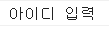
예시 3) 폼 / 아이디 접근
* 네 가지 모두 apple을 노출
<script>
        'use strict'
        const frm2 = document.frm2;
        console.log(frm1.search.placeholder);
        console.log(frm2.userid.value);
        console.log(document.forms[1][0].value); // 두번째 폼에 첫번째 요소
        console.log(document.forms['frm2'].elements['userid'].value);
        console.log(document.getElementById("id").value);
</script>
* SELECT 다루기 예시 )
<body>
    <h2>SELECT 다루기</h2>
    <select id="testSel">
        <option value="0">선택하세요.</option>
    </select>
    <button onclick="setSelect()">셀렉트 값 설정</button>
    <script>
        'use strict'
        const fruitList = [
            { oKey:'apple', oVal:'사과' },
            { oKey:'banana', oVal:'바나나' },
            { oKey:'orange', oVal:'오렌지' },
            { oKey:'peach', oVal:'복숭아' }
        ];

        const targetSel = document.getElementById('testSel');

        function setSelect(){
            // console.log('setSelect() 호출');
            fruitList.forEach(function(list, i){
                // console.log(list, i);
                const opt = document.createElement('option'); // <option></option>
                opt.setAttribute('value', list.oKey); // <option value="apple"></option>
                opt.innerText = list.oVal; // <option value="apple">사과</option>
                targetSel.appendChild(opt);
            });
        }
    </script>
</body>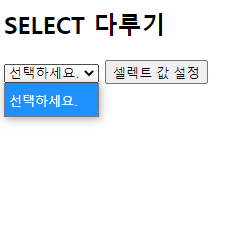

* 체크박스 다루기 예시 )
<body>
    <h2>체크박스 다루기</h2>
    <form name="regForm">
        <p>취미</p>
        <p>
	<label>드라이브<input type="checkbox" name="hobby" value="드라이브"></label>
        <label>영화감상<input type="checkbox" name="hobby" value="영화감상"></label>
        <label>등산<input type="checkbox" name="hobby" value="등산"></label>
        <label>게임<input type="checkbox" name="hobby" value="게임"></label>
        <label>쇼핑<input type="checkbox" name="hobby" value="쇼핑"></label></p>
        <p>
	<input type="button" value="선택" onclick="selCheck()">
        <input type="button" value="전체선택" onclick="allCheck()">
        <input type="button" value="전체해제" onclick="unCheck()"></p>
    </form>
</body>
1) 1개 이상 선택 / 선택하지 않을 때
<script>
        'use strict'
        function selCheck(){
            let cnt = 0;
            const frm = document.regForm;
            for(let i=0; i<frm.hobby.length; i++){
                if(frm.hobby[i].checked){
                    cnt++;
                }
            }
            if(cnt == 0){
                alert('취미는 적어도 1개이상 선택하세요.');
                return false;
            }
        }
</script>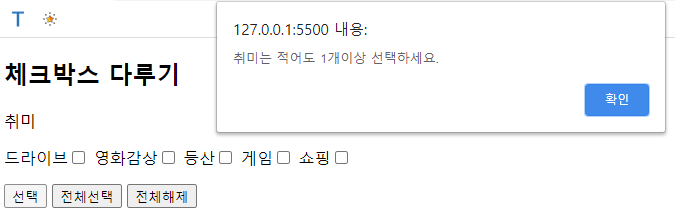
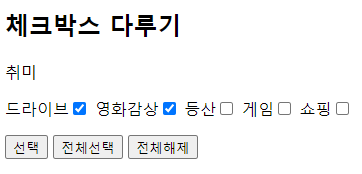
2) 전체 선택 시
<script>
        'use strict'
        function allCheck(){
            const frm = document.regForm;
            for(let i=0; i<frm.hobby.length; i++){
                frm.hobby[i].checked = true;
            }
        }
</script>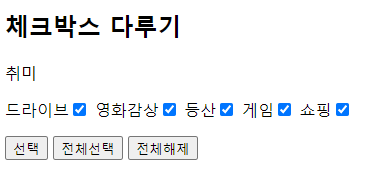
3) 전체 해제 시
<script>
        'use strict'
        function unCheck(){
            const frm = document.regForm;
            for(let i=0; i<frm.hobby.length; i++){
                frm.hobby[i].checked = false;
            }
        }
</script>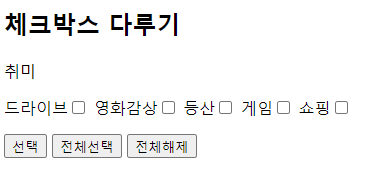
● 자바스크립트 정규식 표현
| ^x | 문자열이 x로 시작한다 |
| x$ | 문자열이 x로 끝난다 |
| .x | 임의의 한 문자를 표현한다 |
| x+ | x가 1번 이상 반복한다 |
| x? | x가 존재하거나 존재하지 않는다 |
| x* | x가 0번 이상 반복한다 |
| x|y | x 또는 y를 찾는다 |
| (x), (x)(y), (x)(?:y) | () 안의 내용을 캡처하며, 그룹화한다 |
| x{n} | x를 n번 반복한 문자를 찾는다 |
| x{n,} | x를 n번 이상 반복한 문자를 찾는다 |
| x{n,m} | x를 n번 이상 m번 이하 반복한 문자를 찾는다 |
| [xy] | x, y 중 하나를 찾는다 |
| [^xy] | x, y를 제외하고 문자 하나를 찾는다 |
| [x-z] | x~z 사이의 문자 중 하나를 찾는다 |
| \^ | 특수문자를 문자로 인식함 |
| \b | 문자와 공색사이의 문자를 찾는다 |
| \B | 문자와 공백 사이가 아닌 값을 찾는다 |
| \d | 숫자를 찾는다 |
| \D | 숫자가 아닌 값을 찾는다 |
| \s | 공백 문자를 찾는다 |
| \S | 공백이 아닌 문자를 찾는다 |
| \t | Tab 문자를 찾는다 |
| \v | Vertical Tab 문자를 찾는다 |
| \w | 알파벳 + 숫자 + _ 를 찾는다 |
| \W | 알파벳 + 숫자 + _을 제외한 모든 문자를 찾는다 |
* test() : 정규식 표현식에 대입한 문자열이 부합하면 true, 아니면 false를 반환합니다.
ex)
const exp = /정규식 패턴/;
exp.test("문자열"); // ture or false
예시 )
<body>
    <h2>정규식</h2>
    <form name="emailForm">
        <p>이메일 : <input type="text" name="email" id="email"></p>
        <p><input type="button" value="전송" onclick="emailCheck()"></p>
    </form>
    <script>
        'use strict'
        function emailCheck(){
            const email = document.getElementById('email').value;
            const exptext = /^[A-Za-z0-9\.\-]+@[A-Za-z0-9\.\-]+\.[A-Za-z0-9\.\-]+/;
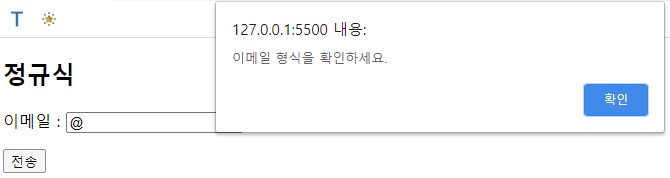
            if(exptext.test(email) == false){
                alert('이메일 형식을 확인하세요.');
                return false;
            }
        }
    </script>
</body>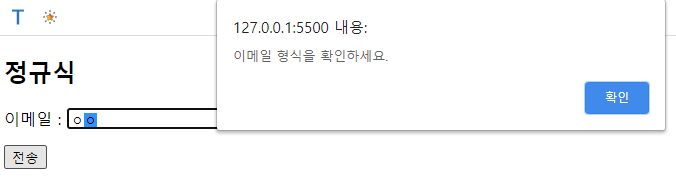

다음 우편번호 API
http://postcode.map.daum.net/guide
Daum 우편번호 서비스
우편번호 검색과 도로명 주소 입력 기능을 너무 간단하게 적용할 수 있는 방법. Daum 우편번호 서비스를 이용해보세요. 어느 사이트에서나 무료로 제약없이 사용 가능하답니다.
postcode.map.daum.net