🎨 Programming/Android(Kotlin)
[Kotlin] 15. 안드로이드 ScrollView / ImageView
ryang x2
2020. 12. 3. 01:40
728x90
반응형
# ScrollView
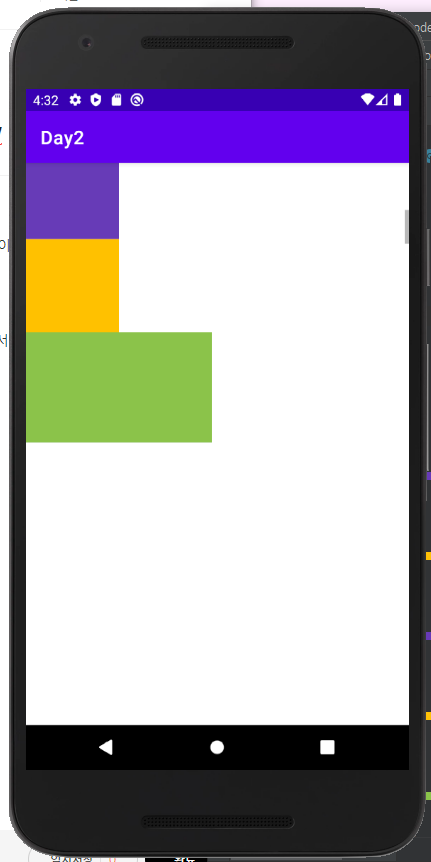
여러 개의 위젯을 레이아웃에 담을 경우 해상도 보다 더 넓은 뷰가 필요하게 되는데 이를 해결하기 위해 스크롤을 만들어 여러 개의 위젯을 담을 수 있게 합니다.
예시 )
<?xml version="1.0" encoding="utf-8"?>
<LinearLayout xmlns:android="http://schemas.android.com/apk/res/android"
    android:layout_width="match_parent"
    android:layout_height="match_parent"
    android:orientation="vertical">
    <ScrollView
        android:layout_width="match_parent"
        android:layout_height="300dp"
        android:fillViewport="true"
        android:scrollbars="vertical">
        <LinearLayout
            android:layout_width="wrap_content"
            android:layout_height="wrap_content"
            android:orientation="vertical" >
        <TextView
            android:layout_width="100dp"
            android:layout_height="100dp"
            android:background="#673ab7" />
        <TextView
            android:layout_width="300dp"
            android:layout_height="300dp"
            android:background="#FFC107" />
        <TextView
            android:layout_width="100dp"
            android:layout_height="100dp"
            android:background="#673ab7" />
        <TextView
            android:layout_width="100dp"
            android:layout_height="100dp"
            android:background="#FFC107" />
        <TextView
            android:layout_width="200dp"
            android:layout_height="200dp"
            android:background="#8BC34A" />
        <TextView
            android:layout_width="100dp"
            android:layout_height="100dp"
            android:background="#673ab7" />
        <TextView
            android:layout_width="200dp"
            android:layout_height="200dp"
            android:background="#8BC34A" />
        <TextView
            android:layout_width="100dp"
            android:layout_height="100dp"
            android:background="#FFC107" />
        <TextView
            android:layout_width="300dp"
            android:layout_height="300dp"
            android:background="#673ab7" />
        <TextView
            android:layout_width="100dp"
            android:layout_height="100dp"
            android:background="#8BC34A" />
        <TextView
            android:layout_width="200dp"
            android:layout_height="200dp"
            android:background="#673ab7" />
        <TextView
            android:layout_width="300dp"
            android:layout_height="300dp"
            android:background="#FFC107" />
        <TextView
            android:layout_width="100dp"
            android:layout_height="100dp"
            android:background="#673ab7" />
        <TextView
            android:layout_width="100dp"
            android:layout_height="100dp"
            android:background="#FFC107" />
        <TextView
            android:layout_width="100dp"
            android:layout_height="100dp"
            android:background="#673ab7" />
        <TextView
            android:layout_width="100dp"
            android:layout_height="100dp"
            android:background="#8BC34A" />
        </LinearLayout>
    </ScrollView>

</LinearLayout>
* ScrollView는 무조건 스크롤이 나오자 하는 영역을 전체적으로 감싸줘야한다. 따라서 android:orientation="vertical" 뜻은 레이아웃 전체에서 사용한다는 뜻이다.
* android:fillViewport="true" 전체 꽉채우는 뷰포트를 사용하겠다는 뜻이다.
# ImageView
화면에 이미지 파일을 출력할 수 있게 합니다.
예시 )
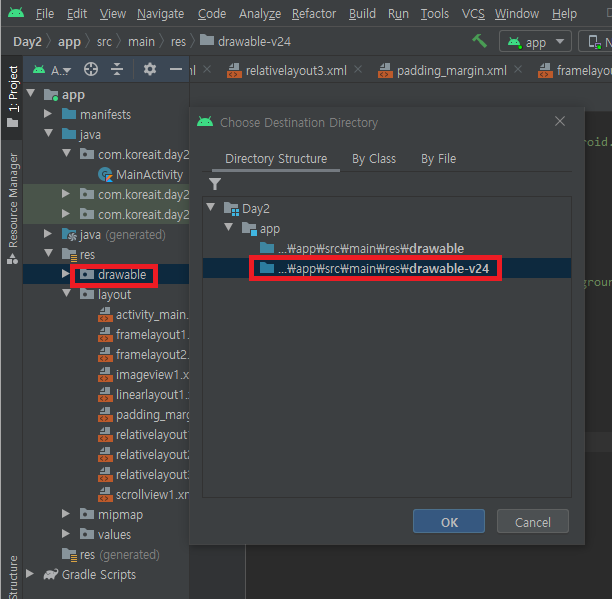
1. 원하는 이미지를 다운로드 한 후 ctrl + v -> drawble 파일 안에 넣어준다.
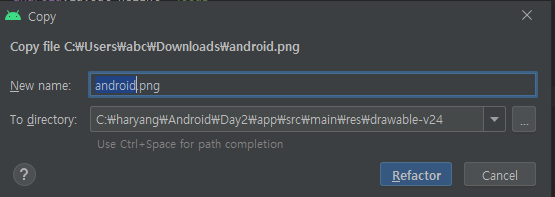
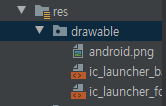
2. 이미지 이름을 소문자로 지정 후 Refactor 클릭하면 이미지가 넣어진 것을 확인하고 사용 할 수 있다.
<LinearLayout xmlns:android="http://schemas.android.com/apk/res/android"
    android:layout_width="match_parent"
    android:layout_height="match_parent"
    android:orientation="vertical">
    <ImageView
        android:layout_width="300dp"
        android:layout_height="300dp"
        android:src="@drawable/ic_launcher_foreground" />
    <ImageView
        android:layout_width="400dp"
        android:layout_height="400dp"
        android:background="#03a9f3"
        android:scaleType="centerCrop"
        android:src="@drawable/android" />
</LinearLayout>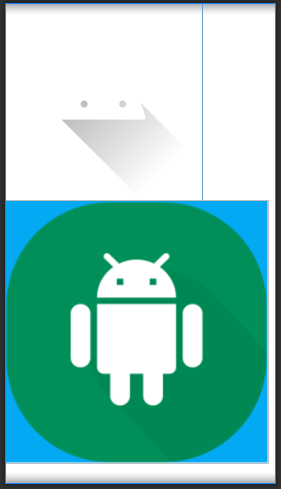
728x90
반응형